Getting started · Placket 1.0.0
Presets: Placket and Bodice
Last updated: November 2, 2026
The theme comes with two presets. A preset is a ready-made style: colors, fonts and the way pages are arranged. Both presets use the same sections and settings, so you can change anything in either one.
Which one to pick
| Placket | Bodice | |
|---|---|---|
| Made for | Everyday womenswear: tops, knits, denim, outerwear, bags | Dark evening wear: gowns, dresses, tailoring, accessories |
| Look | Light, calm and editorial | Dark and dramatic |
| Demo brand | Maren Vale | Oriel Studio |
| Heading font | Instrument Serif | Fraunces (semi-bold) |
| Body font | Figtree | Jost |
What is different
These are the theme settings that differ between the presets.
| Setting | Placket | Bodice |
|---|---|---|
| Colors (all five schemes) | Light | Dark |
| Heading font | Instrument Serif | Fraunces, semi-bold |
| Body font | Figtree | Jost |
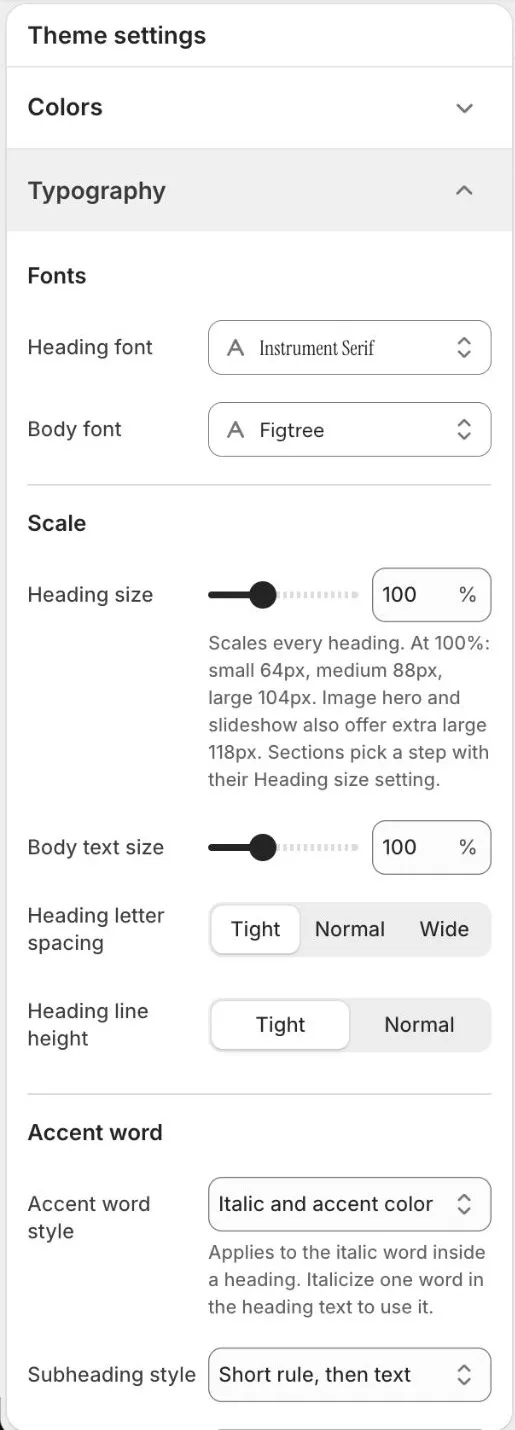
| Heading size | 100% | 90% |
| Accent word style | Italic and accent color | Italic only |
| Subheading style | Short rule, then text | Text only |
| Label style | Sentence case | Uppercase, spaced |
| Button height | 54 px | 52 px |
| Show arrows on buttons and links | On | Off |
| Field style (Inputs) | Boxed | Underline |
| Show item numbers | On | Off |
| Stagger cards in grids | On | Off |
| Badge style | Solid block | Text only |
| Caption style | Plate labels, then figure labels | No captions |
| Country selector Panel color scheme | Scheme 1 | Scheme 2 |
All other theme settings are the same in both presets.
The fonts are set in Theme settings > Typography. This is the Placket preset, with Instrument Serif for headings and Figtree for body text:
How the pages are arranged
The Bodice preset also arranges some pages differently. For example:
| Page | Placket | Bodice |
|---|---|---|
| Header | Logo centered, main menu on its own row, mega menu on, sticky when scrolling up, a menu promo for Clothing | Main menu split around a centered logo, compact sticky header, transparent on the home page, mega menu off, a menu promo for Dresses |
| Footer | About left, footer menus right | About on top, footer menus below |
| Home page | Slideshow, Featured collections, Featured products, Editorial story, Fabric and care story, Shop the look, Blog posts, Newsletter | Image hero (Stage), Rich text, Featured products (Spotlight), Lookbook (Triptych), Featured collections (Index), Fabric and care story (Macro), Capsule launch (Invitation) |
| Product page | Thumbnails on the left, details as an accordion | Cinema layout, details as tabs on desktop, with Complete the look in the Stage layout |
| Collection page | Banner image on the right, sidebar filters, numbered pages, one promo tile | Cinema banner, filters in a bar, infinite scroll, one wide promo tile |
| Cart page | Table with summary on the right | Rows with summary card |
You can recreate any of these arrangements in either preset. Open the section and change its Layout setting.
How to switch presets
There are two ways.
Option 1: add the other preset as a new theme.
- Open the Placket listing in the Shopify Theme Store.
- Pick the other preset and select Add theme.
- Customize and publish it when ready.
Your first theme stays in the library, so you can compare the two.
Option 2: change the style in the theme editor.
- Select Online Store > Themes > Customize.
- Open Theme settings.
- Scroll to the last group, Theme style, and open it. Pick Placket or Bodice, then select Change style.
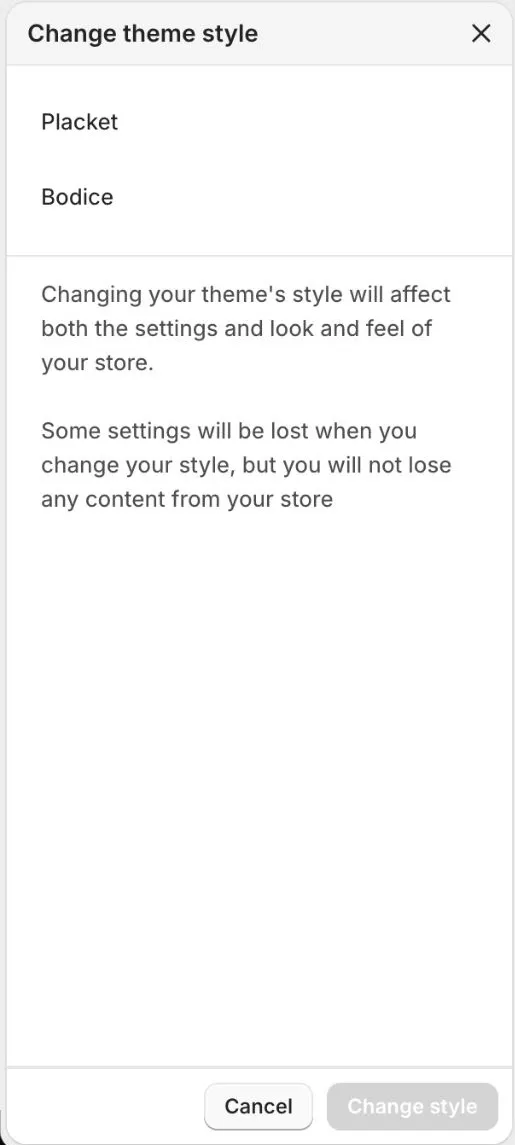
The editor warns that a style change affects both the settings and the look and feel of your store. Some settings are lost, but you do not lose any content from your store. Duplicate your theme first so you can go back.
Tips
- Both presets include a Cart type setting. The default is Drawer in both.
- Changing the preset does not change your products, collections, menus or pages.