Help · Placket 1.0.0
Frequently asked questions
Last updated: November 2, 2026
Find your question in the list, or search this page. If you cannot find an answer, see the support policy.
Setup and design
- How do I change the logo size?
- How do I change the fonts?
- How do I change the colors?
- How do I make one word in a heading italic?
- How do I set up a menu with a mega menu?
- How do I make the header transparent?
- How do I add social media icons?
- How do I change words like "Add to cart"?
- How do I switch between Placket and Bodice?
Products and collections
- How do I hide sold-out products?
- How do I add a size chart?
- How do I show different details per product?
- Why are my color swatches not showing?
- Why are my filters not showing?
- How do I change the product page tabs?
- How do I turn off quick view?
- Why don't I see stars?
- How do I show low stock?
- How do I add a promo tile?
- How do I show a short line under the product name on cards?
- Why is Complete the look not showing?
- Why is Pickup availability or Shop Pay Installments not showing?
Cart, popups and marketing
- How do I choose between the cart drawer and the cart page?
- How do I set up the free shipping bar?
- How do I control the newsletter popup timing?
- Can I add a countdown timer, fake stock message, wishlist or discount code field?
Markets, apps and code
- Why is the country selector not showing?
- Why did my menu turn into a hamburger on a laptop?
- How do I add an app to my store?
- How do I add custom CSS or code?
- How do I update the theme?
- How do I get help?
Setup and design
How do I change the logo size?
- Go to Online Store > Themes > Customize.
- Select the Header section in the header group.
- Upload a Logo image.
- Change Image logo width, desktop (60 to 320 px) and Image logo width, mobile (60 to 200 px).
Without a logo image the theme shows your store name as text. Change its size with Text logo size, desktop and Text logo size, mobile. For the footer logo, open the About block in the Footer and change Text logo size or its Logo image.
How do I change the fonts?
- Open Theme settings > Typography.
- Pick a Heading font and a Body font from the font library.
- Adjust Heading size, Body text size, Heading letter spacing and Heading line height if needed.
Before you keep a font, check how it reads at small sizes on a phone. See Theme settings > Typography.
How do I change the colors?
Open Theme settings > Colors. Change the colors in the five color schemes. Every section uses one of the schemes. To change a single section only, pick a different scheme in that section's Color scheme setting. See Theme settings > Colors.
How do I make one word in a heading italic?
- Select the section in the theme editor.
- In the Heading field, select the word.
- Press Ctrl+I (Windows) or Cmd+I (Mac), or use the italic button.
How that word looks is set in Theme settings > Typography > Accent word style. For product, collection, blog, article and page titles, the theme italicizes the last word. Change this in the section's Italic accent in heading setting.
How do I set up a menu with a mega menu?
See Navigation and menus. In short: build a three-level menu in Online Store > Navigation, then check that Enable mega menu is on in the Header section.
How do I make the header transparent?
- Put an Image hero with the Stage, fills the first screen layout at the top of your home page.
- In the Header section, turn on Transparent on the home page.
The header sits over the image with light text, then turns solid when the shopper scrolls and on every other page.
How do I add social media icons?
- Open Theme settings > Social media.
- Paste the full address of each profile.
- In the Footer section, check that Show social media icons is on.
Only networks with a link are shown.
How do I change words like "Add to cart"?
- Go to Online Store > Themes.
- Select the three dots next to your theme, then Edit default theme content.
- Search for the text, change it and save.
Text that you typed in section settings is changed in the theme editor.
How do I switch between Placket and Bodice?
See Presets.
Products and collections
How do I hide sold-out products?
The theme has no setting for this. See Filters and search > Hiding sold-out products for two options: an Availability filter, or an automated collection with an inventory condition.
You can turn the Sold out badge on or off in Theme settings > Badges.
How do I add a size chart?
See Product page > Size guide. In short:
- Go to Online Store > Themes > Customize and open a product page.
- Select the Size guide drawer section, then a Size table block.
- Fill in Heading, Note and Table data. The first line of the table data is the header, each next line is a row, and columns are split by
|. - Keep the Size guide link block in Product information.
- Select Save.
The same table shows on every product that uses the template. To open an existing page instead of the drawer, pick it in Size guide page link in the Size guide link block.
Why is there no size guide link on some products?
The link shows only on products that have a size option. The theme looks for an option named Size (or the name you typed in Size option name) and for common translations such as Taille, Größe, Talla, Taglia, Maat or Tamanho. Products without sizes, such as sunglasses or bags, show no link.
To show the link on every product, open the Size guide link block in Product information and set Show for to All products. If a sized product shows no link, check that the option name contains the word for size, or type its exact name in Size option name.
How do I show different details per product?
Text that is the same on every product is typed in the theme editor (Customize): tabs, highlights, fit notes and the size guide. Text that is different for each product goes in the product description:
- In your Shopify admin, go to Products and open the product.
- Write the text in Description.
- Select Save.
The product page shows the description in the Text block. See Product content.
Why are my color swatches not showing?
Check all of these:
- The option name is Color or Colour, or it is listed in Options shown as swatches in the Variant picker block.
- Each color value has a swatch color or image in Shopify. Use the standard Color attribute. See Product page > Color swatches.
- For swatches on product cards, turn on Show color swatches in Theme settings > Product cards.
Values without a swatch appear as text buttons.
Why are my filters not showing?
- Install the free Search & Discovery app and add filters. See Filters and search.
- In the Product grid section, check that Show filters is on.
- Check that at least one product in the collection has a value for the filter.
- Remember that the Sidebar layout shows on desktop only. On phones, filters open in a drawer behind a button.
How do I change the product page tabs?
The tabs are Collapsible tab blocks. The default page has Shipping and returns, Care and Size help.
- Go to Online Store > Themes > Customize and open a product page.
- Select a Collapsible tab block in Product information.
- Change the Heading and type your text in Content.
- To add a tab, select Add block > Collapsible tab.
- Select Save.
The text is the same on every product. A tab with empty Content is hidden. See Product page > Collapsible tabs.
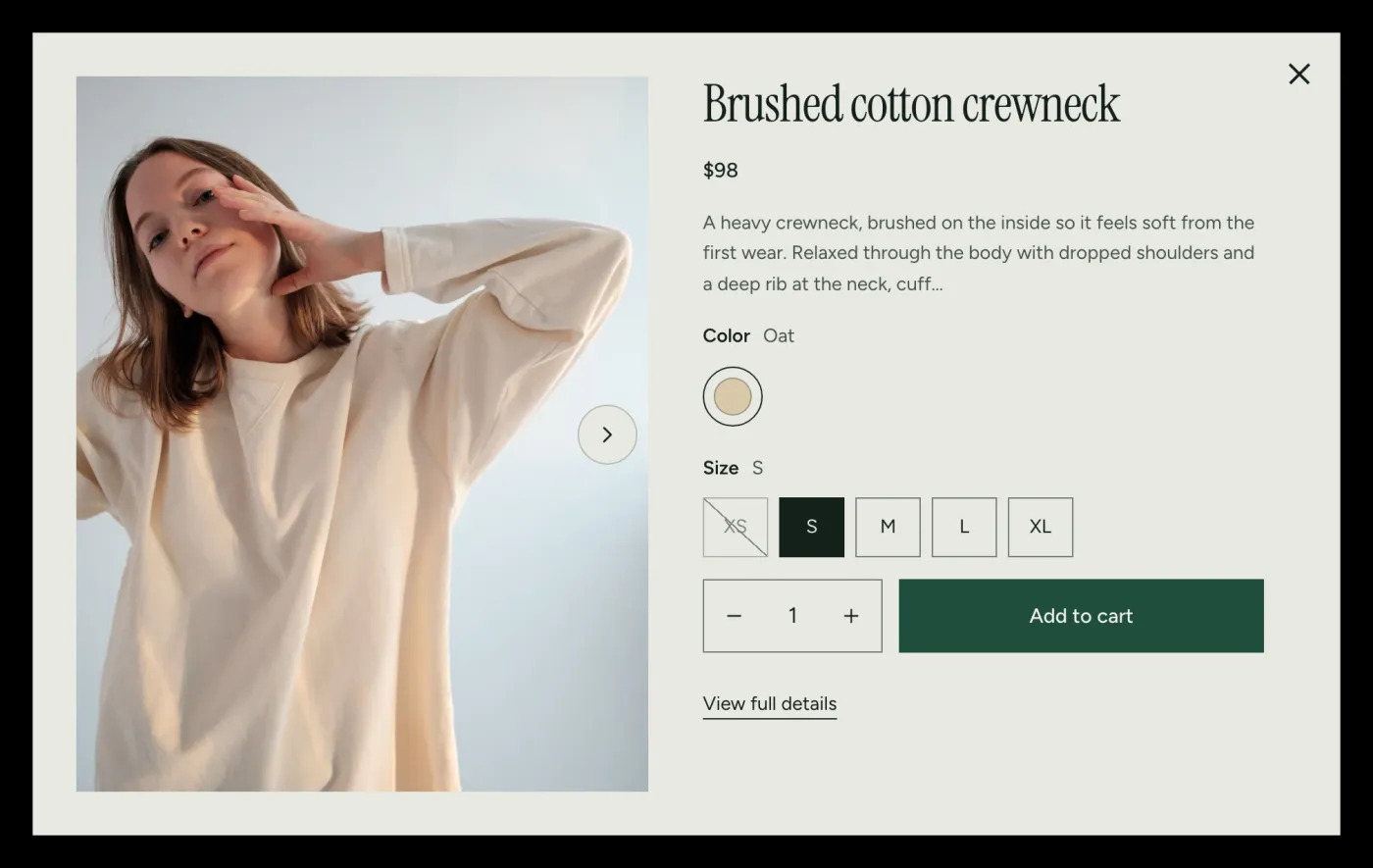
How do I turn off quick view?
- Go to Online Store > Themes > Customize.
- Open Theme settings > Product cards.
- Turn off Show quick view.
- Select Save.
The Quick view button disappears from all product cards. See Theme settings > Quick view. Quick view never shows for gift cards.
This is what quick view looks like on a collection page:
Why don't I see stars?
The theme shows stars only when a review app has saved a rating for the product. Check all of these:
- A review app is installed and the product has at least one published review.
- The app saves its rating on the product in the standard Shopify review fields. Judge.me and other review apps do this. Check the app's help page.
- On product cards, Show product rating is on in Theme settings > Product cards.
- On the product page, the Product information section has a Rating block.
Products without reviews show no stars. The theme never shows made-up ratings. To show the review list, add the app's widget as an app block. See Product page > Reviews and stars.
How do I show low stock?
- Open a product page in the theme editor and select the Product information section.
- Select Add block > Inventory status.
- Set Low stock threshold. The message "Low stock: 3 left" shows when the stock is at or below this number.
- In your admin, check that each variant has Track quantity turned on and a stock count.
The numbers come from your real inventory. See Product page > Stock message.
How do I add a promo tile?
- Open a collection page in the theme editor and select the Product grid section.
- Select Add block > Promo tile.
- Fill in the heading, text, button and image, and set Show after product.
- Select Save.
A promo tile shows on the first page only, and it hides when shoppers use filters. See How to add a promo tile.
How do I show a short line under the product name on cards?
- Go to Online Store > Themes > Customize.
- Open Theme settings > Product cards.
- Set Card subtitle to None, Product type or Vendor.
- Select Save.
The line comes from the product in your admin. Vendor is skipped when Show vendor is on, because the vendor already shows.
Why is Complete the look not showing?
- Open a product page in the theme editor and select the Complete the look section.
- Under Picked products, pick up to 6 products. They show on every product page that uses the template.
- Or leave Picked products empty to use Shopify's complementary recommendations. This needs the free Shopify Search & Discovery app, with complementary products set up for the product. See Product page.
The section hides itself when there are no products to show. The Complete the look link block hides too. A product never lists itself in its own Complete the look section.
Why is Pickup availability or Shop Pay Installments not showing?
Both depend on your store setup:
- Pickup availability needs local pickup turned on for a location with stock.
- Shop Pay Installments needs Shop Pay with installments, available only in some countries and for some prices.
See Product page.
Cart, popups and marketing
How do I choose between the cart drawer and the cart page?
Open Theme settings > Cart and set Cart type to Drawer or Page. The drawer slides in from the side. The page sends the shopper to /cart. See Cart sections.
How do I set up the free shipping bar?
- Open Theme settings > Cart.
- Enter your amount in Free shipping threshold (whole numbers, store currency).
- Check that the cart shows the message.
Set 0 to hide it. The bar is a message only: create a matching free shipping rate in Settings > Shipping and delivery.
How do I control the newsletter popup timing?
The popup is off by default. Turn on Show popup in the Newsletter popup section, then set Show (After a delay, or When the visitor is about to leave on desktop), Delay, Show from page view and Show again after dismissal (days). The popup never appears on the first page load of a visit. See Newsletter popup.
Can I add a countdown timer, fake stock message, wishlist or discount code field?
No. The theme leaves these out on purpose:
- Countdown timers and fake urgency. The Capsule launch section shows a release date as plain text.
- Fake stock messages. The Sold out badge and the Inventory status block show real inventory only. See How do I show low stock?.
- Wishlist. Not included. Some apps add one with an app block.
- Discount code field in the cart. Shoppers enter discount codes at checkout. Automatic discounts show in the cart.
- Popups on the first page load. The newsletter popup waits for a later page view.
Markets, apps and code
Why is the country selector not showing?
It shows only when your store sells in more than one country or language, and when it is turned on in the Header or Footer. See Translations and markets.
Why did my menu turn into a hamburger on a laptop?
The theme checks whether the main menu fits beside the logo. On a laptop or a small window, a long menu may not fit. The header then shows the hamburger button and the menu drawer, as on a phone. The full menu comes back when the window is wider or the menu is shorter.
To keep the full menu, use fewer or shorter top-level items, choose a layout with more room, or lower Main menu text size in the Header section. See Navigation and menus > When the menu does not fit.
How do I add an app to my store?
- Install the app from the Shopify App Store.
- In the theme editor, select Add section > Apps on any page, or Add block inside Product information or Featured product.
- Pick the app's block. If the app uses an embed, turn it on under App embeds in the left bar.
Not every app supports theme blocks. Check the app's page. If an app only offers manual code, you need to add code yourself, and that is not covered by theme support.
How do I add custom CSS or code?
- Use the Custom Liquid section or block for HTML, CSS and Liquid. See Custom code and apps.
- Theme settings has a Custom CSS group. Its CSS box adds styles to your entire online store.
- A selected section also has a Custom CSS group at the bottom of its settings. Its CSS box adds styles to that section only.
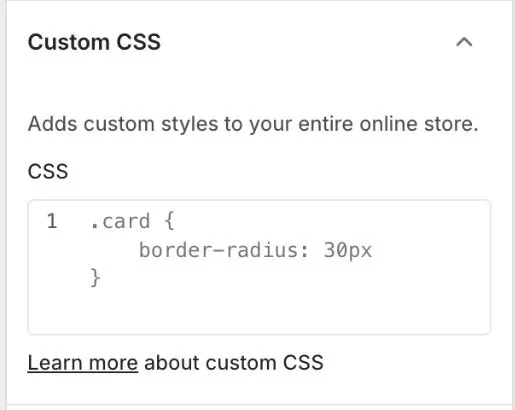
Always duplicate your theme first (Online Store > Themes > Actions > Duplicate). Custom code is not covered by support. We suggest you hire a Shopify Partner for custom work.
How do I update the theme?
See Updating the theme.
How do I get help?
Read this FAQ and the documentation first. Then see the support policy to contact us at https://devoptly.com/support?topic=theme-support.